Walks and devices
Choose what a capture walks and which devices it draws on, discover flows, and walk by hand.
5 tasks, 3 questions answered.
A core can offer several walks: the whole app, one flow, or a crawl.
- Press Capture on the bar line to open its panel.
- Choose the data first, then the whole app or one flow.
- Read how long the chosen walk takes and what it can prove.
- Press Capture in the panel.
Wrong turn? A walk is dimmed? The panel says why its doctor fails; install what it names and open the panel again.
walk, journey, whole app, one flow, choose a walk, capture options, data, fixture, real data
One capture can draw the same walk on a phone, a foldable and a tablet.
- In Capture's panel, open the Devices row where the project's core has one.
- Tick the screens to draw on. The first you tick is the main one, marked Main.
- Capture. The walk is drawn on each device, one after another.
- Select a screen drawn on more than one and choose Show Devices (⇧⌘D).
Wrong turn? A tablet's run stopped at a step? A walk written for a phone can fail where the layout has no such button; the phone's run stands.
devices, phone, tablet, foldable, responsive, screen sizes, show devices, main device
A look is a platform and a device, such as Web · Phone or Android · Tablet.
- Choose Map › Show Map As for the whole map, or Show Screen As for the chosen screen.
- A screen with no capture in that look is a card that says so: Capture Now on it captures at once, Add to Capture ticks the device for the next capture.
- Main Device goes back to the device the project captures first.
Wrong turn? Undo Look Change goes back one change. It is not ⌘Z.
look, platform, show as, android, ios, web, tablet, not captured, main device, undo look
A crawl taps what each screen offers and draws every flow it reaches.
- In Capture's panel, choose the data and the whole app, then Discover flows in the Run pop-up.
- Set the crawl's depth and taps on the Budget row.
- Capture. The crawl can finish sooner when it has no new screens to explore.
- Choose Keep Flows… and tick the flows worth keeping; each becomes a walk in the panel.
Wrong turn? A crawl on staging stopped at once? A session token that sends it to sign-in stops the crawl; start it again with a fresh one.
discover, crawl, explore, find flows, budget, depth, taps, keep flows, staging, chromium
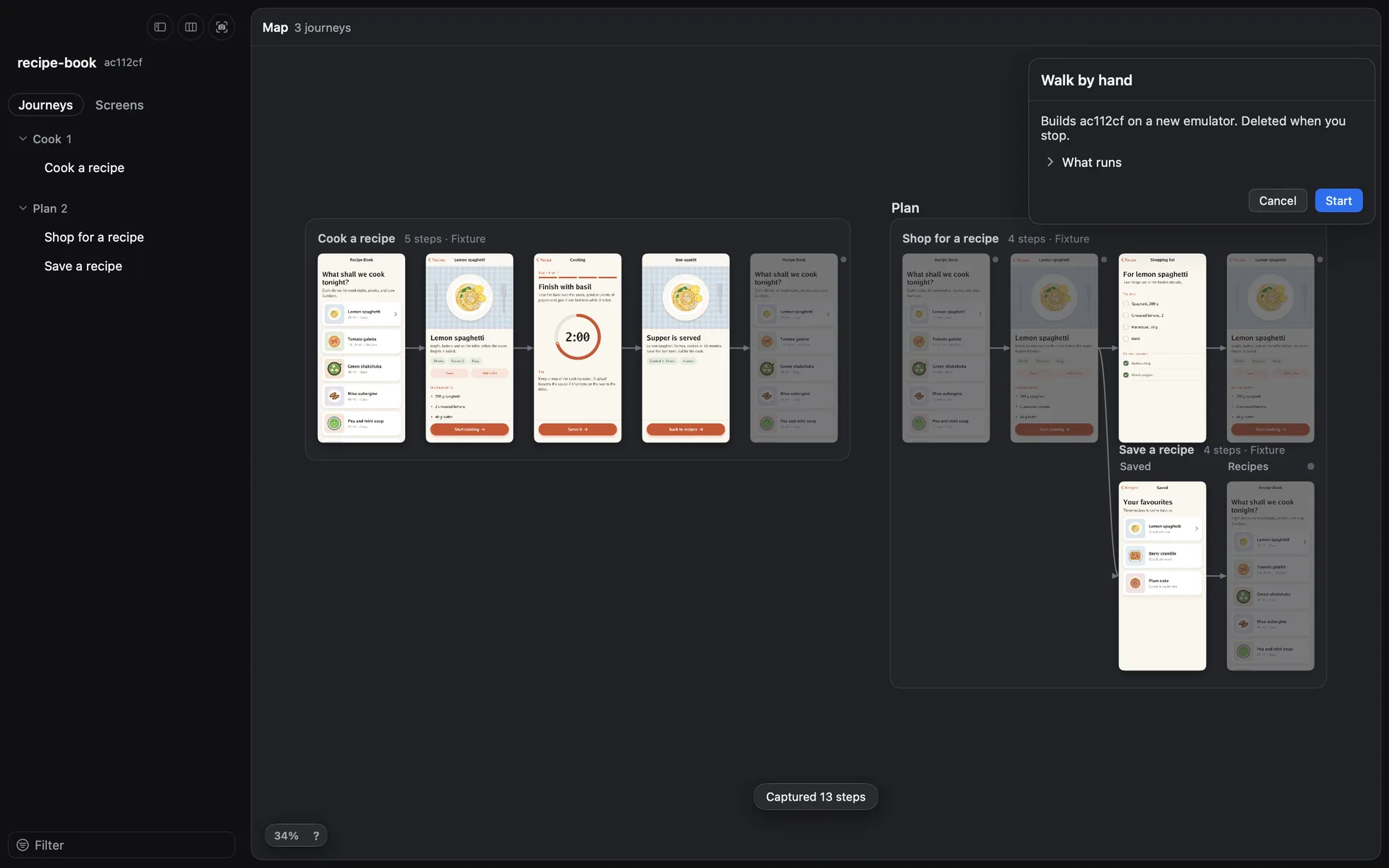
You click through the app yourself, and the journey grows on the map.
- Choose File › Walk by Hand… (⇧⌘R).
- Press Start. The core boots an emulator of its own, with no window.
- Click in the device view on the right to walk.
Wrong turn? Typed something private? Text you type stays out of every record unless you mark it safe.
walk by hand, manual, record a journey, emulator, device view, click through, mirror
How it works
What happens to the other devices when I capture one again?
Only that device's walk on the same platform is replaced.
- Drawing again on one device leaves the others.
- A capture with no device ticked draws on the core's own screen and replaces every device's.
- A walk on an emulator or a simulator draws on its own device, and Discover flows crawls one device at a time.
replace, device, recapture one device, own screen
When does a screen show in another look?
Only from a capture of the same journey.
- It must be taken at the map's commit, with the same seed, role, account and locale.
- Nothing else stands in. Showing a look never starts a capture.
- Your choices are kept with the project, and a screen with a look of its own keeps it when the map changes.
look, same journey, not captured, stand in, commit, locale
What can a crawl change in my app?
On fixtures, only the copy it runs in.
- For Next.js and React projects, Discover flows explores the app in Chromium on fixtures: links, buttons, tabs and menu items.
- A crawl on staging refuses HTTP writes, GraphQL mutations included.
- Scripted staging walks can perform their declared actions, so choose the walk you intend to run.
crawl, staging, writes, mutations, safe, read only, real data