Capture a project
Trust a project and capture it, capture it again, read the log, and install a core for another stack.
4 tasks, 4 questions answered.
A capture runs your project's code, so the first one asks before it does.
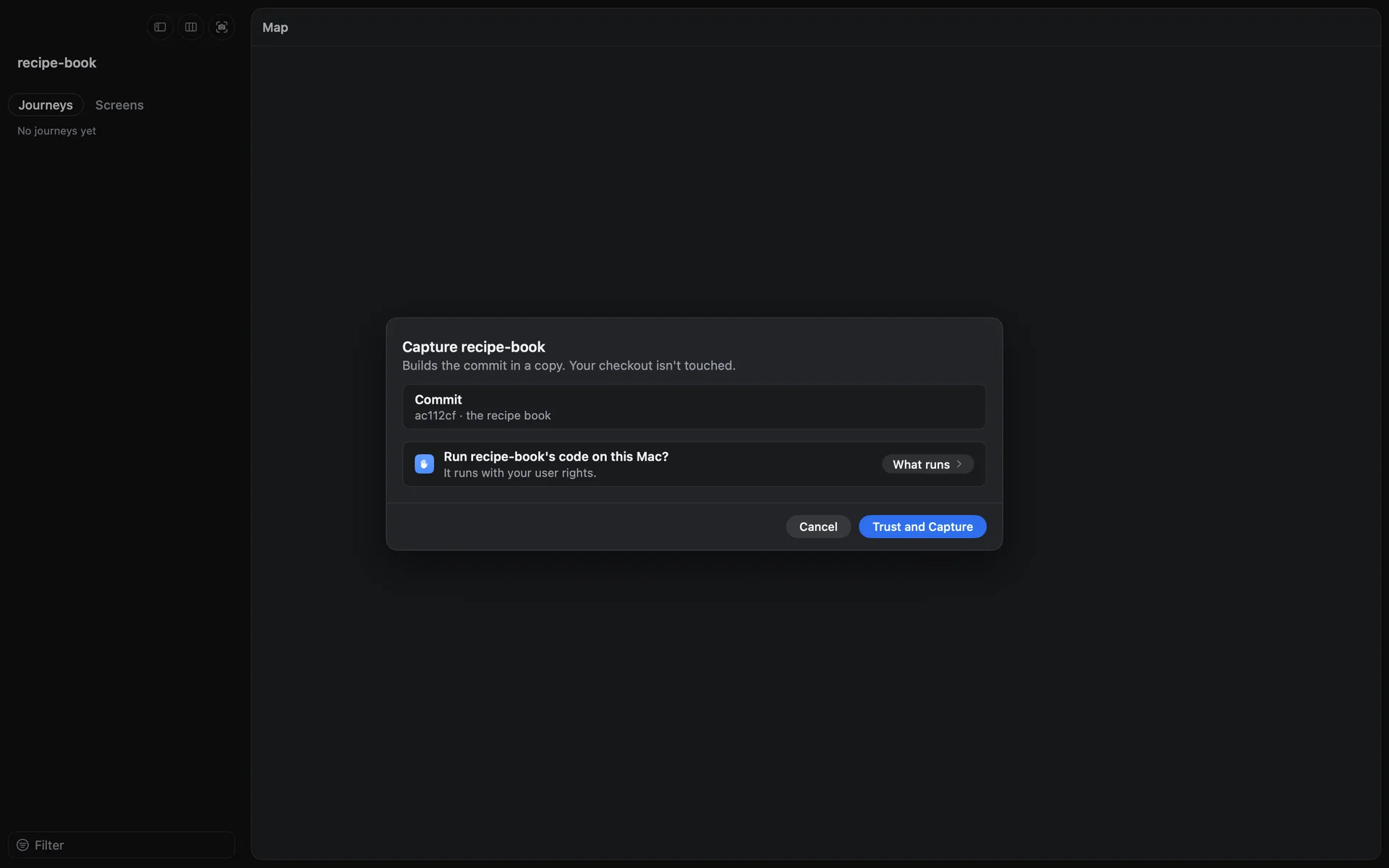
- Open the project and press Capture… on the empty map, or ⌘R.
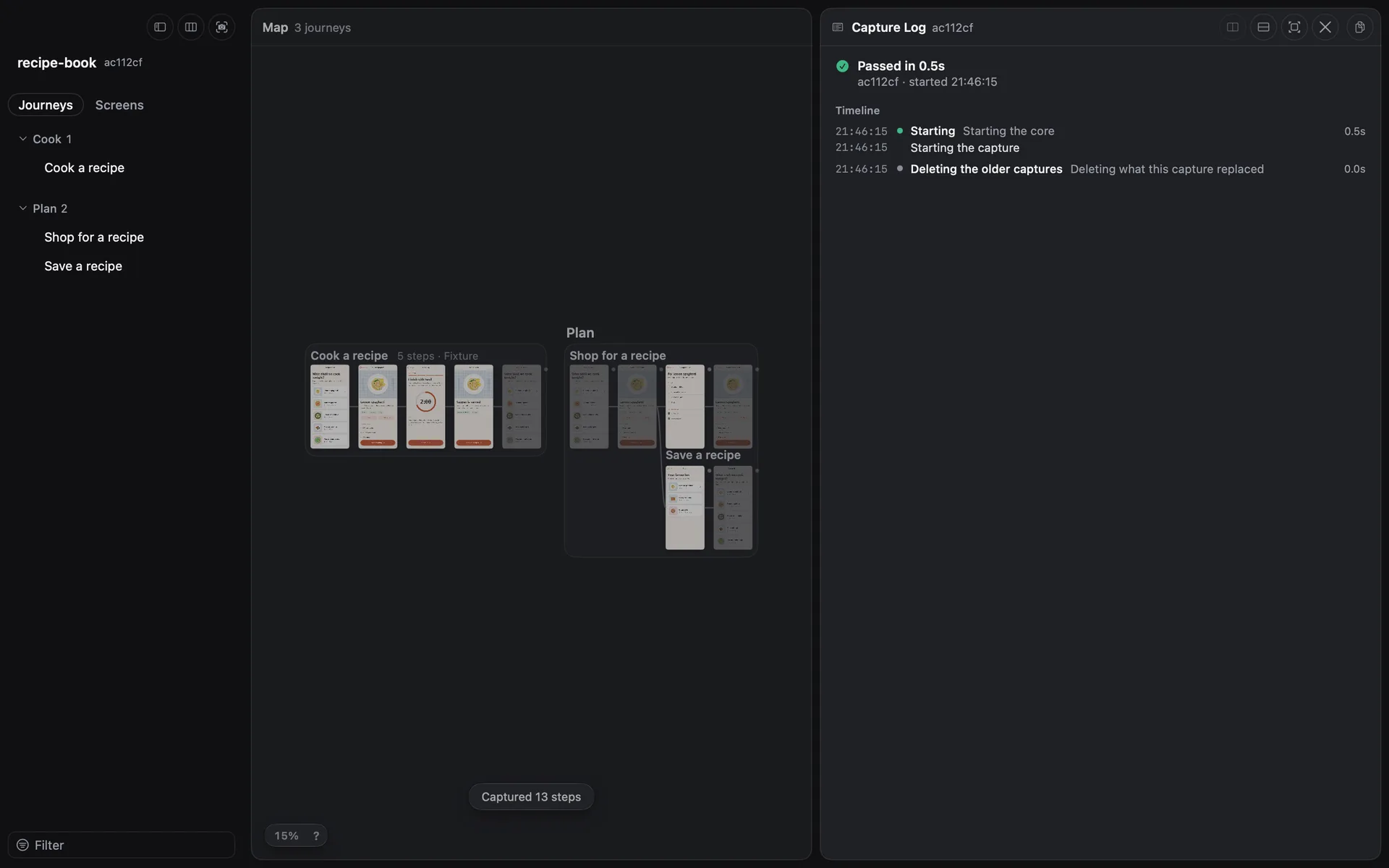
- Open What runs: read the Capture command, what the core declares, and the Folders.
- Press Trust and Capture. Screens appear on the map as the capture runs.
Wrong turn? Not sure about a command? Press Cancel: nothing has run and no trust is recorded.
first capture, trust, run code, permission, what runs, capture command, start a capture, cmd r
The map shows the commit it was captured at; a new commit needs a new capture.
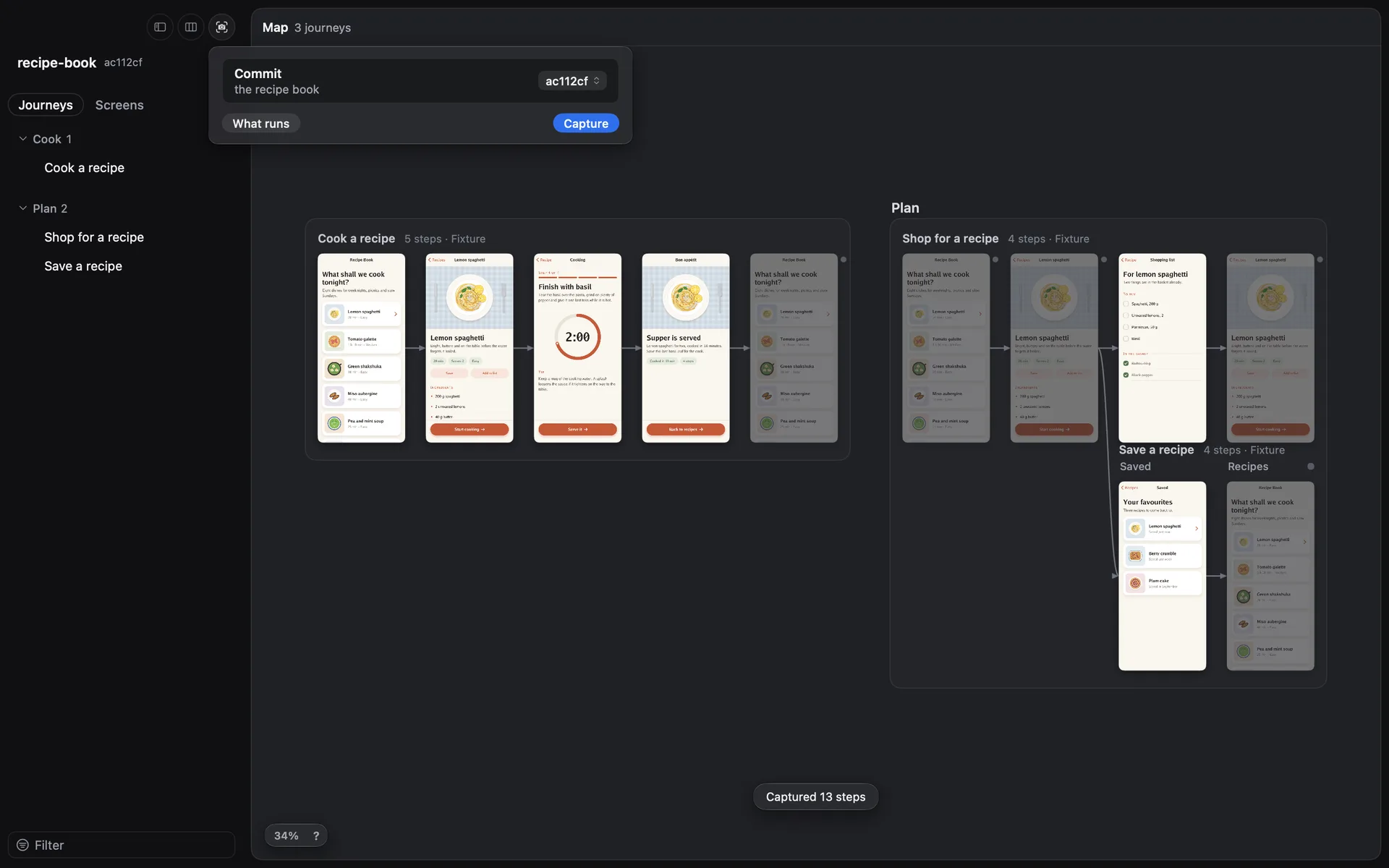
- Press Capture on the bar line. Its panel sets what a capture runs.
- Keep the latest commit, or choose Other… in the commit's pop-up and type one.
- Press Capture in the panel. A trusted project starts at once, and ⌘R does the same.
Wrong turn? Captured the wrong commit? Capture the right one; a capture replaces what it walked again.
recapture, capture again, another commit, latest, update the map, capture panel, refresh
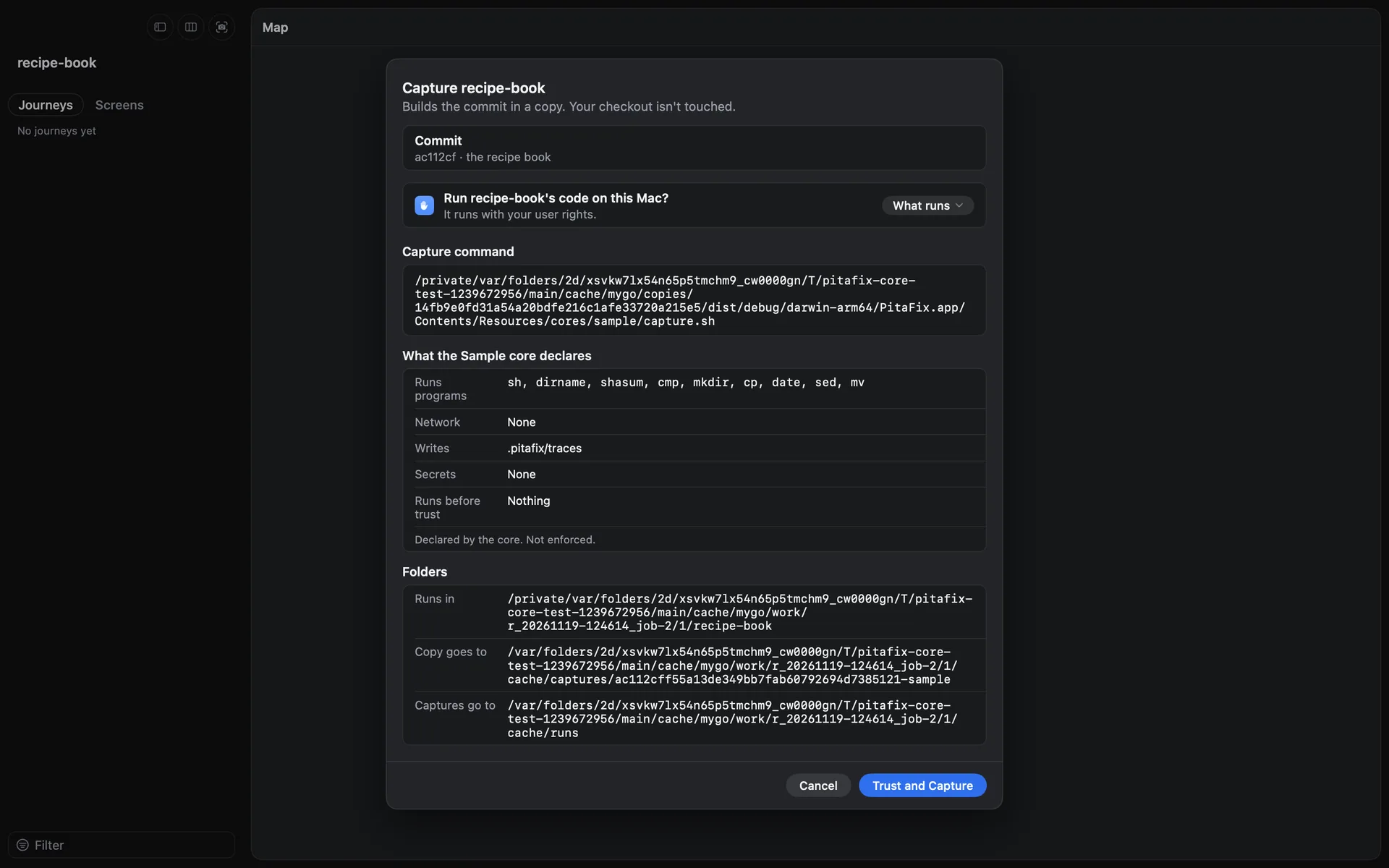
The log says which phase failed, and can be handed to an agent.
- When the toolbar says Capture failed, click it and choose Open Log.
- Read the reason, then each phase with its start time and how long it took.
- Press Copy for Agent in the pane's header to copy it all as Markdown.
Wrong turn? Closed the pane? File › Capture Log opens it again until you close the project.
capture failed, error, log, build failed, why did it fail, copy for agent, timeline, phase
A core knows how to build and capture one stack. The app ships with the sample core.
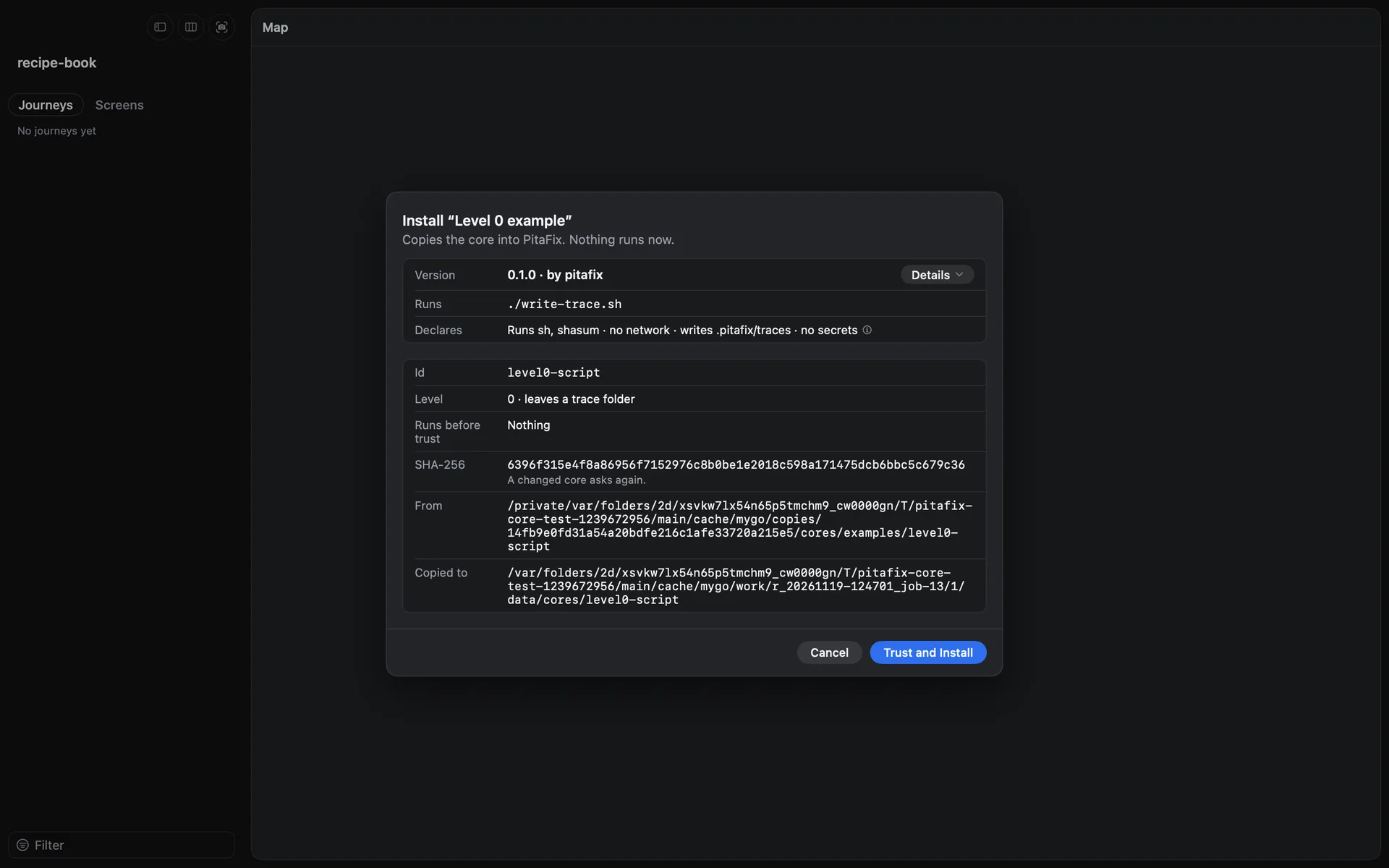
- Choose File › Install Capture Core… and select the core's folder.
- Read what it Runs and Declares; the details add its Id, Level and SHA-256.
- Press Trust and Install. The core is copied into PitaFix; nothing runs now.
Wrong turn? Installed the wrong one? pitafix core grants lists what was allowed, and pitafix core revoke withdraws a grant.
core, install core, stack, Kotlin Multiplatform, Rails, Next.js, React, MyGo, plugin, add a stack, permissions, sha256
How it works
What does a capture run, and where?
The core's capture command, in a copy of the commit.
- PitaFix never builds in your checkout. The commit is copied into the cache and built there.
- The sheet shows the command, the tools the core found, and the folders before anything runs.
- The code runs with your user rights. A core's declared permissions record your consent; they are not a sandbox.
- Secrets are masked before evidence is saved.
sandbox, safe, permissions, user rights, copy, checkout untouched, cache, security, trust
What does trusting a project record?
That you read what runs and allowed it for this project.
- Once a project is trusted, Capture… starts at once with what the panel set.
- A walk that needs more, such as another repository's folder, shows its grants in the same sheet, and one Trust and Capture records them all.
- A core that changed asks again.
trust, grants, consent, asked again, permission, revoke
What does a capture replace?
The journeys it walked again, and nothing else.
- Journeys an older capture left stay until you delete them; the sidebar says when each section was last captured.
- Comments stay with their screens. When code moved, PitaFix finds a comment's links again at the new commit.
- A board shows the new picture of a screen a capture replaced.
replace, old journeys, stale, older capture, keep comments, overwrite
What does a screen's proof label mean?
How much that screen proves.
- A screen drawn with fixture data proves what that fixture rendered: its label reads Fixture.
- A native tap on a simulator, or a server's own record of the result, proves more. The label's tooltip says what it proves.
- Read the label before treating a journey as a tested end-to-end flow.
- Routes a capture did not reach remain visible in the sidebar, with the core's reason for each.
proof, fixture, evidence, host render, end to end, tested, not reached, label