Live
Use the running app inside a captured screen's card, and keep what you did as a capture.
2 tasks, 3 questions answered.
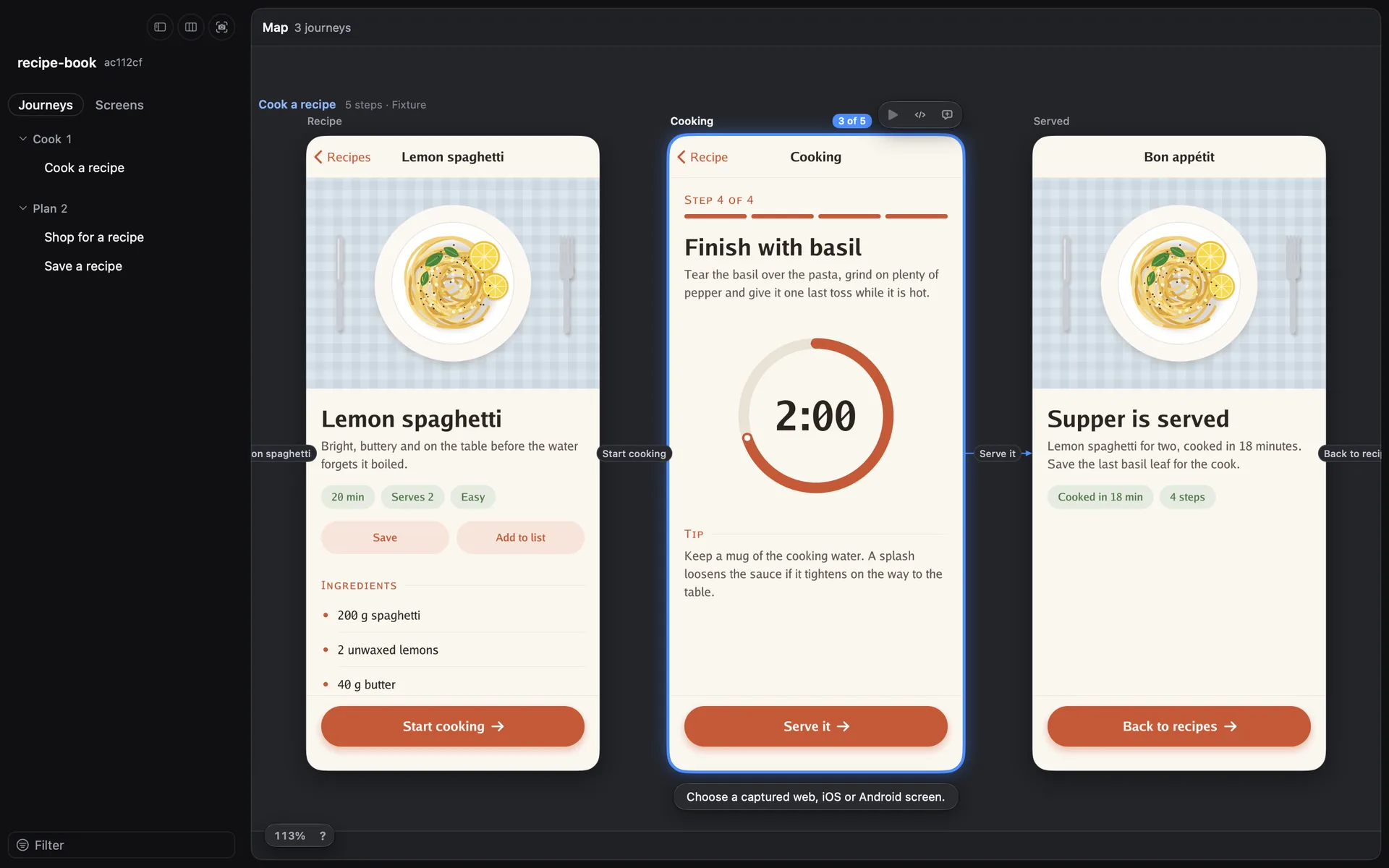
The app runs inside the screen's card, in the state the capture reached.
- Select a captured screen.
- Press Start Live at the end of its title line, or choose Map › Start Live.
- Wait for the chip on the title line to go from Starting… to Live, then use the app in the card.
Wrong turn? The button is dimmed? Its tooltip says why, and a notice says it again when you press it.
live, run the app, interact, emulator, simulator, start live, play, try the app
What you do in a session can end as a capture with a comment on it.
- Click the round button in the window's top bar, after Capture. It shows a green dot while a session is live.
- Choose Stop Live, or Stop and Comment to save the final capture and arm the comment tool.
- Focus Live takes you back to the session's screen; Live Details opens its panel in the inspector.
Wrong turn? Keyboard stuck in the running app? Press ⌘⇧Esc to return to the button, then ↩ for its menu.
stop live, stop and comment, focus live, live details, end session, keyboard, escape
How it works
What does Live run on?
A device the core owns, with the capture's test data.
- Android and iOS use an emulator or a simulator owned by the core. iOS needs Xcode.
- Web Live uses the bundled Chromium engine, and replay requires the captured browser version.
- Screens captured against a local server of another core cannot start Live.
emulator, simulator, chromium, xcode, android, ios, web, requirements
What is Live Preview?
A chosen Android screen on fixture data going live by itself, with no device.
- The chip on the card's title line says Starting… while the app starts, then Preview. Nothing is recorded; press Start Live to keep what you do.
- A screen whose state can't be replayed stays a picture, and its chip says No preview, with the reason in its tooltip.
- It never asks to trust a project: it runs only where Start Live was allowed before.
- Map › Preview Chosen Screens turns it off.
preview, automatic, host render, no preview, turn off preview
What happens to what I type in web Live?
Private input stays out of pictures and recipes.
- Private input hides the live picture until the core saves a masked frame, and private text stays out of replay recipes.
- Canvas, video and embedded documents are hidden when the session contains secrets.
- The page cannot open popup windows, JavaScript dialogs or file pickers.
- Live Details has the option to keep typed text in captures, off for each new session.
password, private, secrets, masked, typed text, privacy, clipboard, popup