Tasks
Every comment as a card on a board: what is open, what an agent has, and what waits for you.
4 tasks, 3 questions answered.
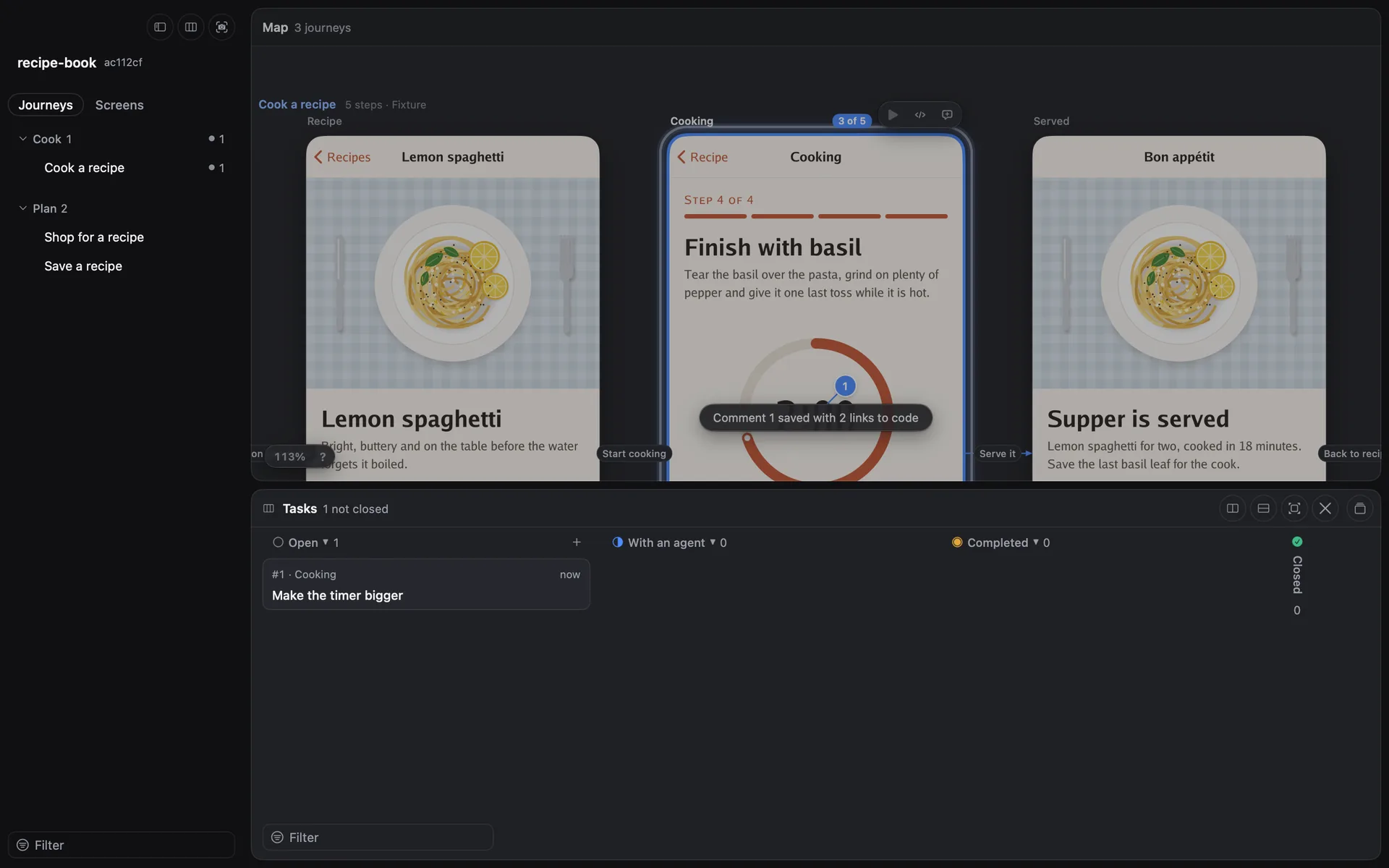
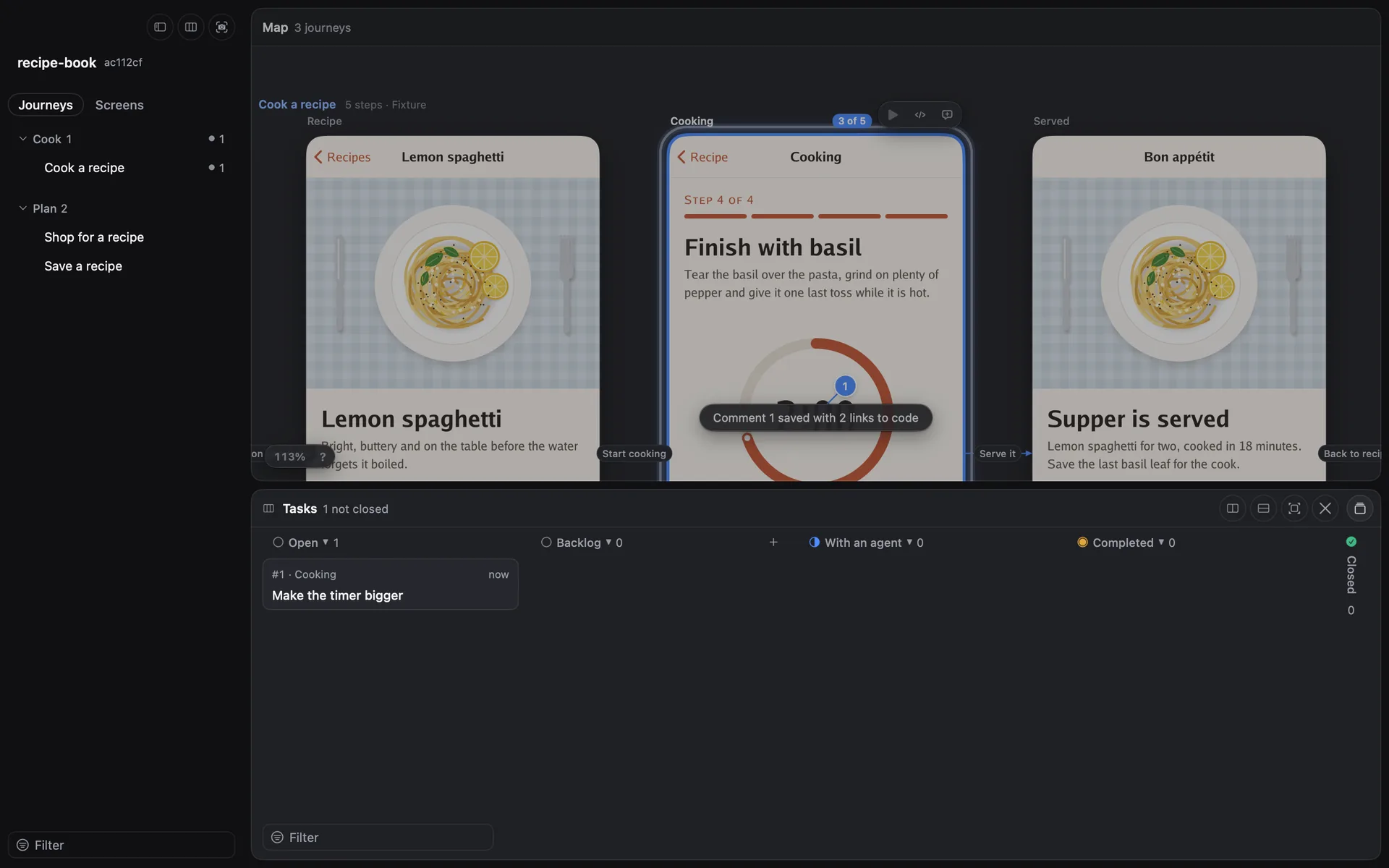
The pane is the one list of comments.
- Press the button with three columns beside the sidebar's toggle, or choose View › Panes › Tasks.
- Click a card to open its thread at the board's right. The arrow keys go from card to card, and Esc closes it.
- Choose Show on Map in the card's menu to fly the map to its screen.
Wrong turn? Too many cards? Type in Filter at the pane's foot, or click the mark on a journey's row to see only its comments.
tasks, board, kanban, cards, list of comments, open comments, thread, show on map
A card's column says where its comment stands.
- Drag a card onto Closed to resolve or dismiss it, and onto Open to reopen it.
- Or right-click the card for the same, and Delete.
- Click a column's head to fold it to a strip.
Wrong turn? Closed the wrong card? Drag it back onto Open.
move, drag, resolve, reopen, close, columns, status, fold
A place to sort open cards before an agent has them, such as Backlog or Next.
- Press the + on the Open column's head.
- Name the column and press Create.
- Drag a card there, or use Move to Column in its menu.
Wrong turn? Right-click the column's head to rename it, move it or delete it; its cards go back to Open.
column, backlog, next, custom column, new column, rename column, sort
An epic names the cards that belong to one piece of work.
- Choose the cards with ⌘-click, ⇧-click or ⌘A.
- Choose New Epic… in a card's menu, or in the bar of the cards you chose.
- Press Lanes by Epic in the pane's header to draw a lane for each epic.
- With lanes, drag a card onto an epic's head to put it there; Move to Epic does the same anywhere.
Wrong turn? Deleting an epic leaves its cards. A card is in one epic at most.
epic, lanes, swimlanes, group, project, milestone, move to epic
How it works
What do the columns mean?
Where each comment stands between you and an agent.
- Open: nobody has it yet. With an agent: an agent is working on it.
- Completed: the agent is done, and the comment waits for you. Closed: resolved or dismissed.
- A card whose agent asks or stopped says so under its words, with Answer, Retry or Session.
columns, status, open, with an agent, completed, closed, waiting
What do the marks outside the pane say?
What needs you, without opening Tasks.
- The Tasks button has an amber dot while a completed comment waits for you.
- On the map, a ring round a screen says what its tasks are doing: red asks you or stopped, amber is completed, blue is with an agent, grey is open.
- A mark on a row of Journeys or Screens opens Tasks with only that row's comments.
dot, ring, colours, red, amber, blue, grey, badge, needs attention
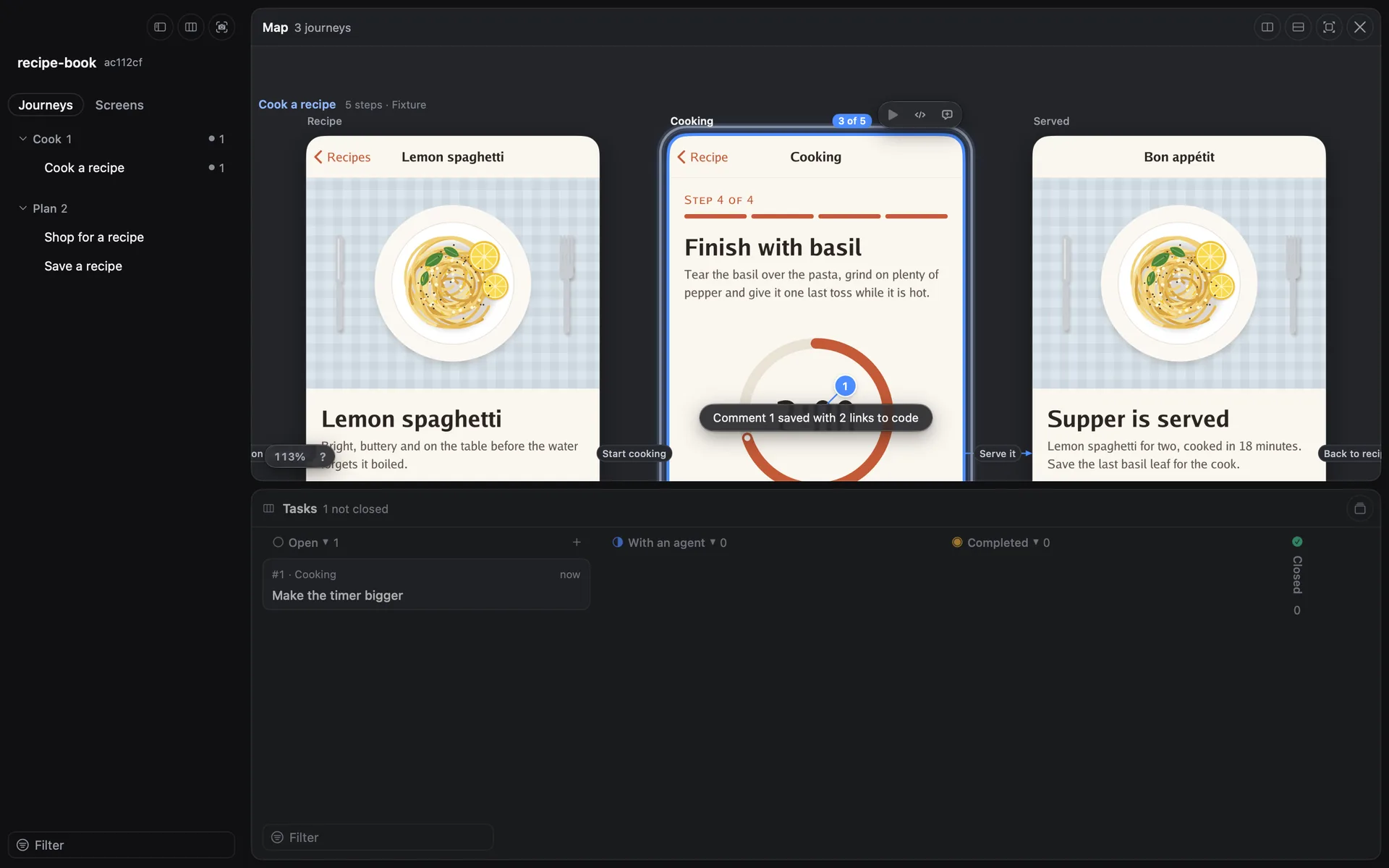
Where does the pane sit?
Under the map, or beside it as a list.
- It opens under the map; drag it narrow beside the map and it is a list.
- A second press on the Tasks button hides it. The button stays beside the sidebar's toggle when the sidebar is hidden.
- A comment already open in a pane of its own comes forward there instead.
layout, list, narrow, hide, pane, position